
Marketplace Guide
The Marketplace is where your agency shares skills, agents, MCP servers, widgets and API integrations. Build something once, then share it with your agency or every agency on Momentum AMP.
✨ Add an item
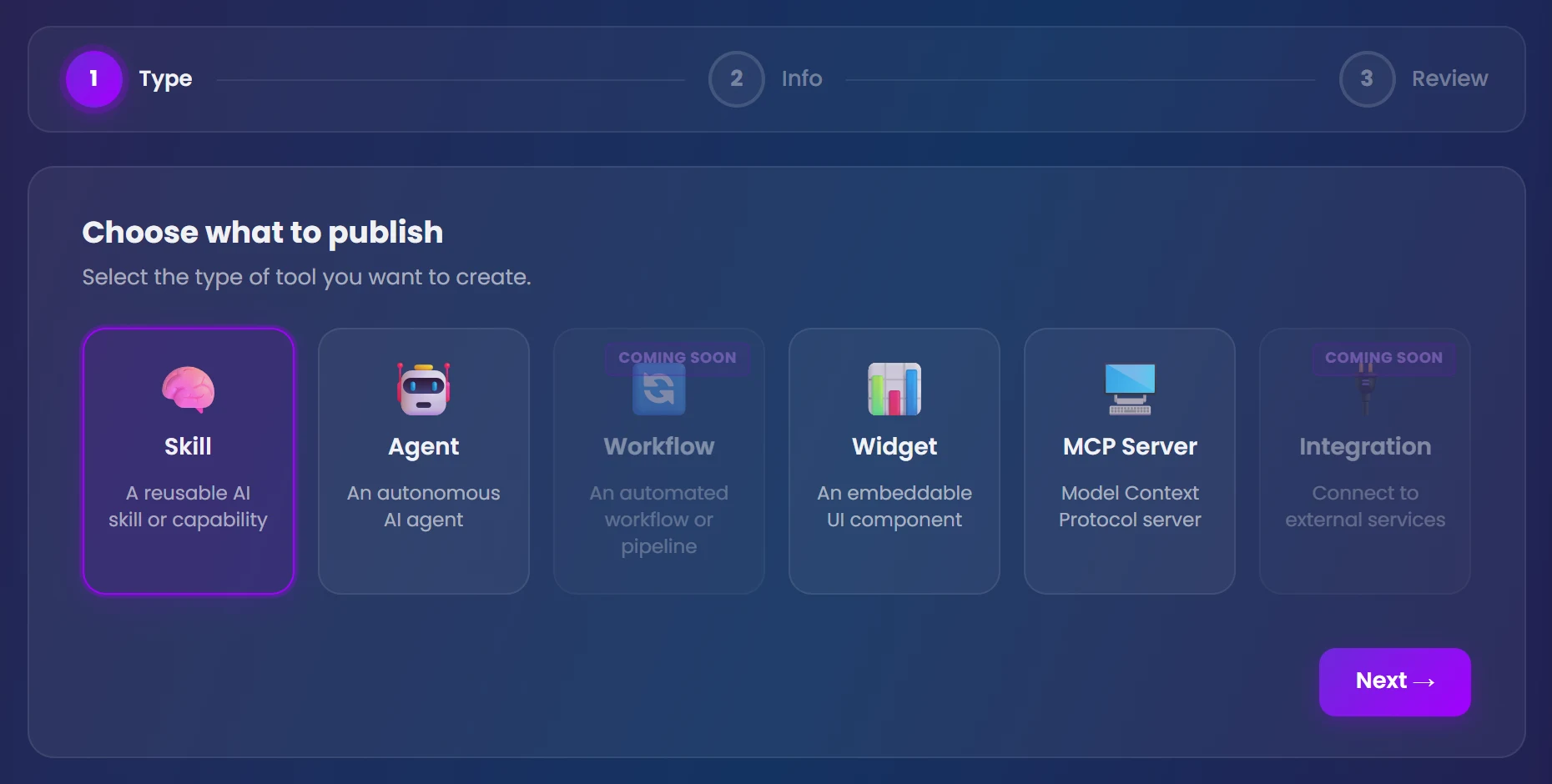
- Open + Create New.
- Type: pick Skill, Agent, MCP Server, Widget or API Integration.
- Setup: add what the type needs. That's skill content for a skill, an agent (one of yours, or a new one built right there) for an agent, a server URL for an MCP server, or a .zip or .html bundle for a widget. An API integration has its own steps: import, endpoints, info, connect and review.
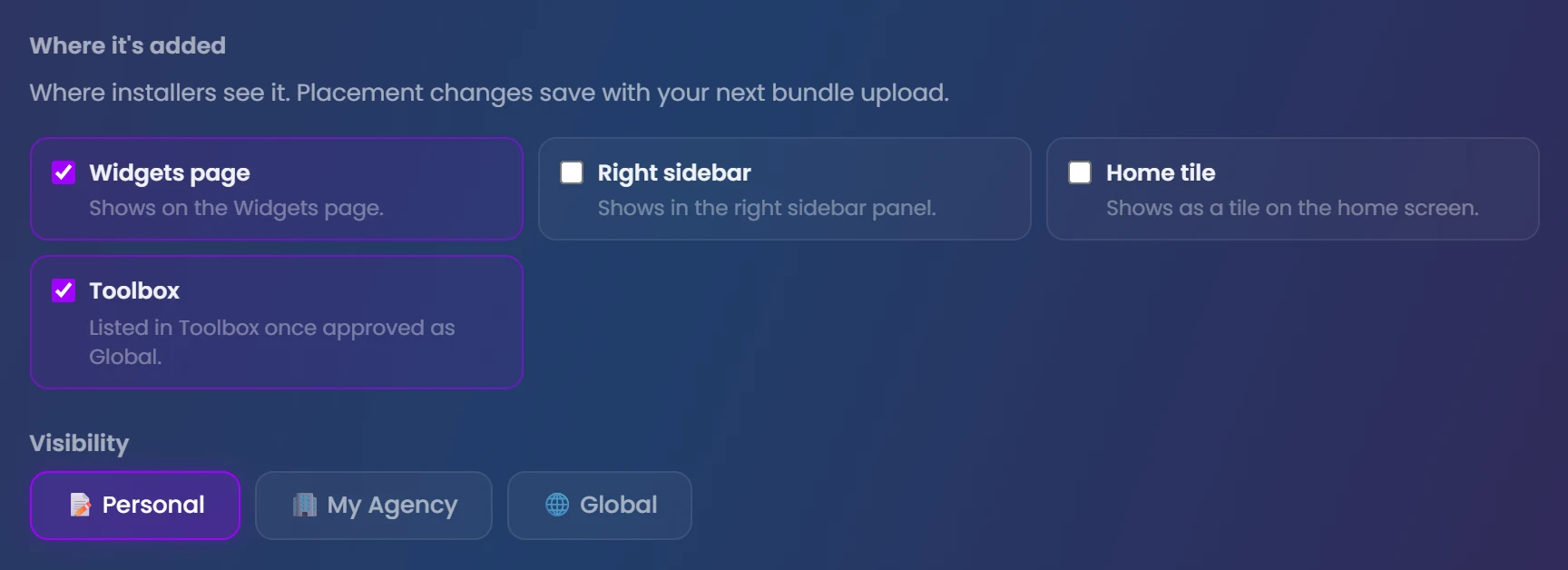
- Info: name, category, icon and visibility: Personal (just you), My Agency (your agency sees it in Browse) or Global (every agency, after review). A widget also chooses where it shows (see Where items go).
- Store page: fill in the listing page people see: a description (Draft with AI can write one), a video, screenshots, and the version and what's new in it.
- Save. New items install for you automatically.
✏️ Edit an item
- Go to My Creations.
- Open the item's Actions menu (⋯) and choose Edit.
- Make your changes and click Update.
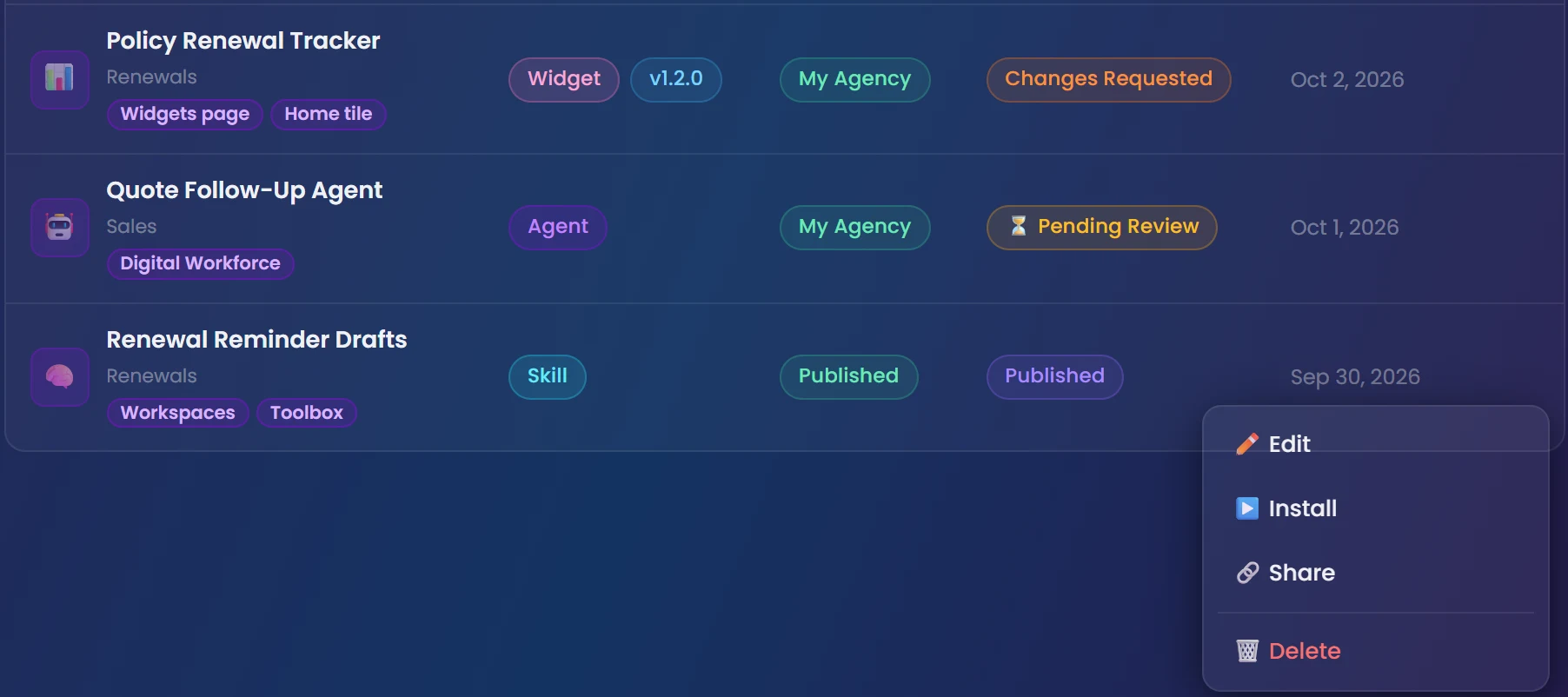
An item's type can't change. Create a new item instead.
Editing a Global item sends it back for review. It drops to My Agency and leaves Toolbox until it's approved again. Agencies that already installed it keep it.
Widget placement, version and connection changes only save when you upload the bundle again.
Removing a place from a widget's "Where it's added" doesn't remove it from places it was already added.
🌐 Publish to every agency
- Create or edit the item and set visibility to Global.
- Click Save. This sends it to Momentum AMP for review. It stays visible to you (or your agency) in the meantime.
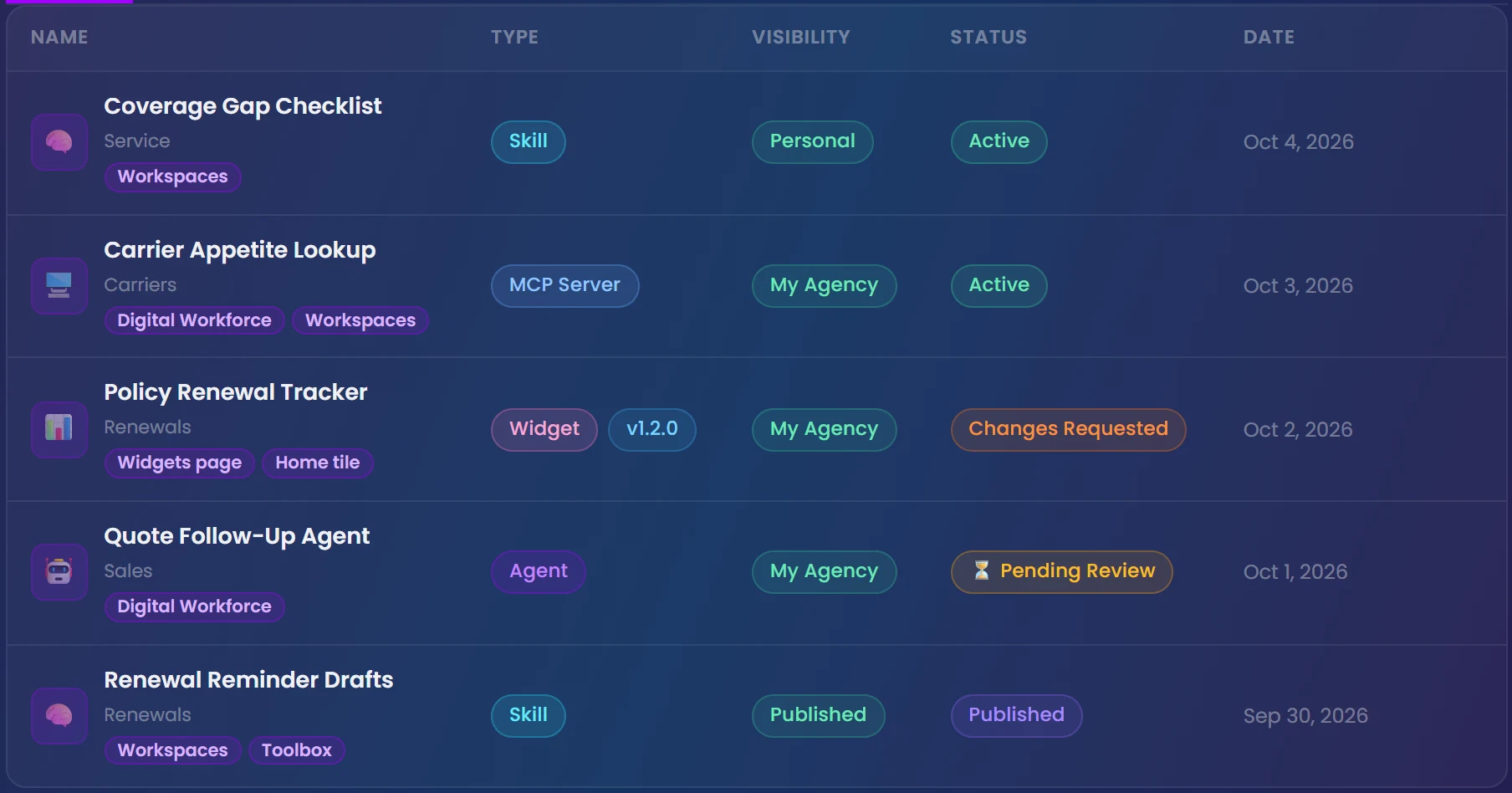
- Track it in My Creations: ⏳ Pending Review, then Published.
- If you see Changes Requested or Rejected, click the item to read the reviewer's feedback and reply. Fix it, then save as Global again to resubmit.
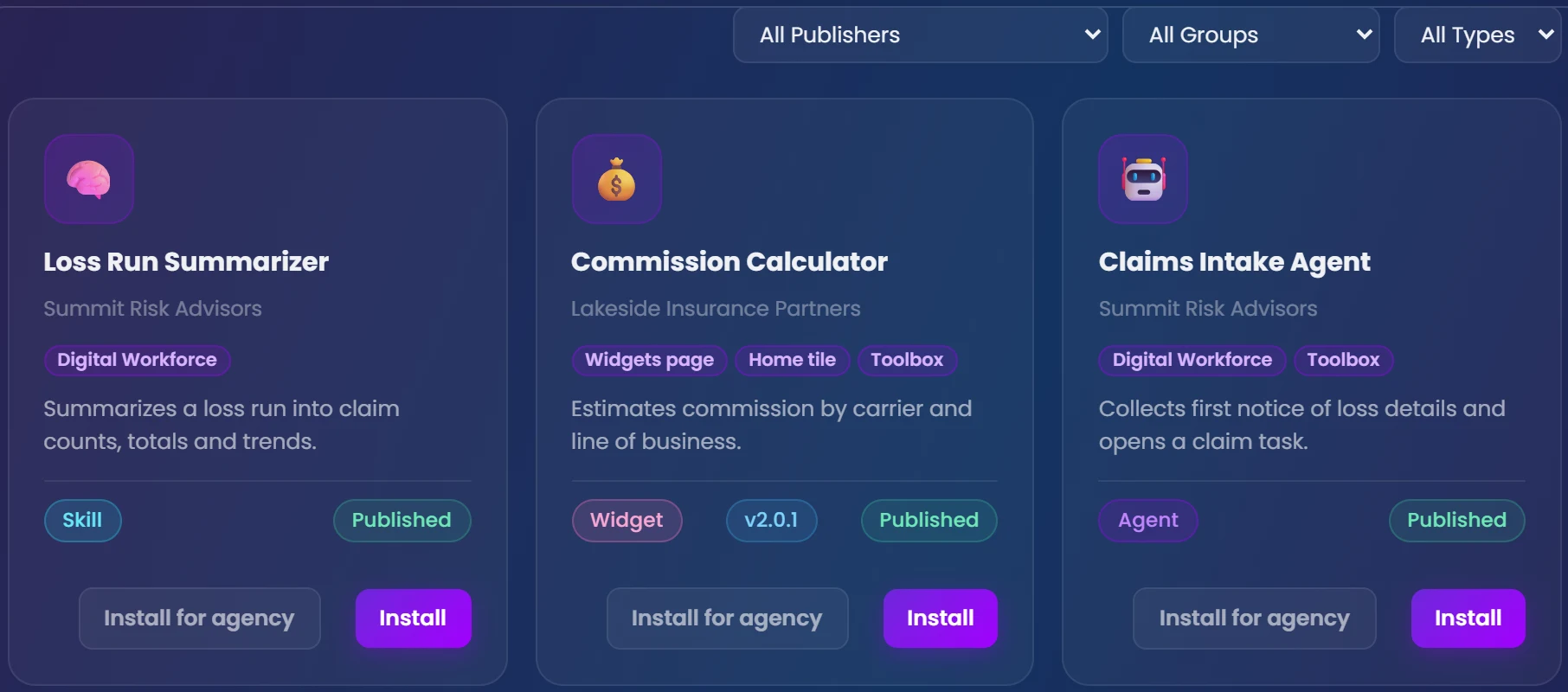
Once approved, every agency can find it in Browse, with your agency shown as the publisher.
Each approval is a new version. People who installed it get the approved version, not your later edits, until the next approval.
Widgets with Toolbox ticked are also listed in Toolbox.
📦 Install from the Marketplace
- Open Browse and narrow it by publisher, group or type.
- Click an item to open its store page, then Install. Agency Admins choose Just me or Everyone at their agency.
- Skills and MCP servers land in your library in Digital Workforce. Turn them on for any agent from that agent's Skills or Tools tab.
- Once it's installed, you can rate and review it on its store page.
- Manage or remove it anytime from Installed.
🧭 Where items go
Where each type lands when someone installs it. Only widgets have a choice; the creator picks it in the Info step.
| Skill | The installer's library in Digital Workforce, to turn on for any agent |
|---|---|
| Agent | A new agent in the installer's Digital Workforce |
| MCP Server | The installer's library in Digital Workforce, to turn on for any agent |
| API Integration | The installer's API integrations, to turn on for the agents they choose |
| Widget | Widgets page · Right sidebar · Home tile · Toolbox (the creator picks) |
Toolbox (widgets only): listed in Toolbox once approved as Global.
Last updated October 29, 2026